
What you need before you start
- Dibur 2.1.0 or later on your computer. Check update availability at the top of this guide.
- Obsidian installed with a local vault opened at least once. A vault is the folder that holds your notes.
- A dictation, completed meeting, or agent result to save. Use a short, non-sensitive example for the first attempt.
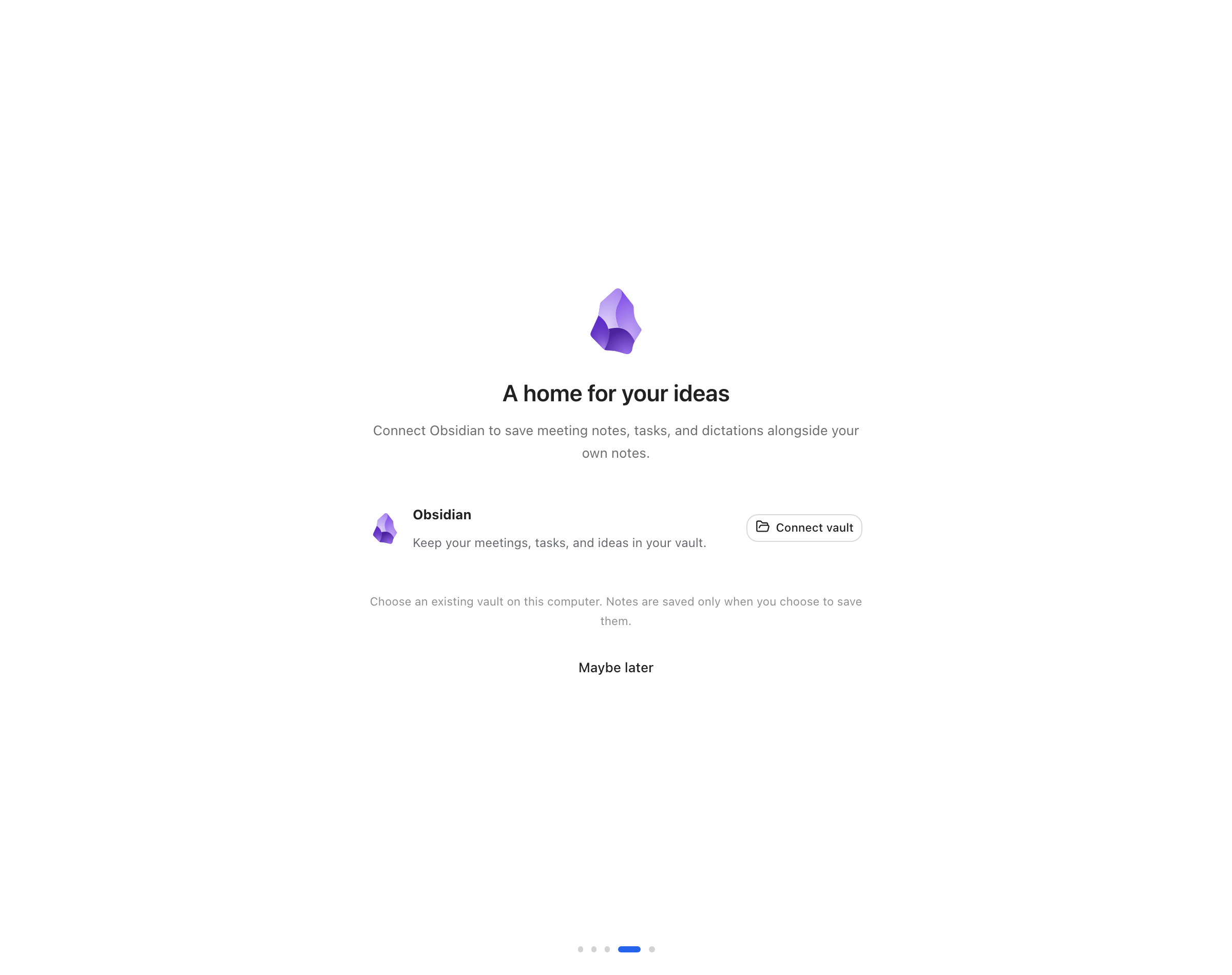
Have a vault? Connect it from Home
Cancelling the folder picker leaves the previous setting in place. During onboarding, Maybe later lets you continue without connecting anything. To use a different vault later, choose Change vault in the same row and verify the new name before saving your next note.
Find the purple icon
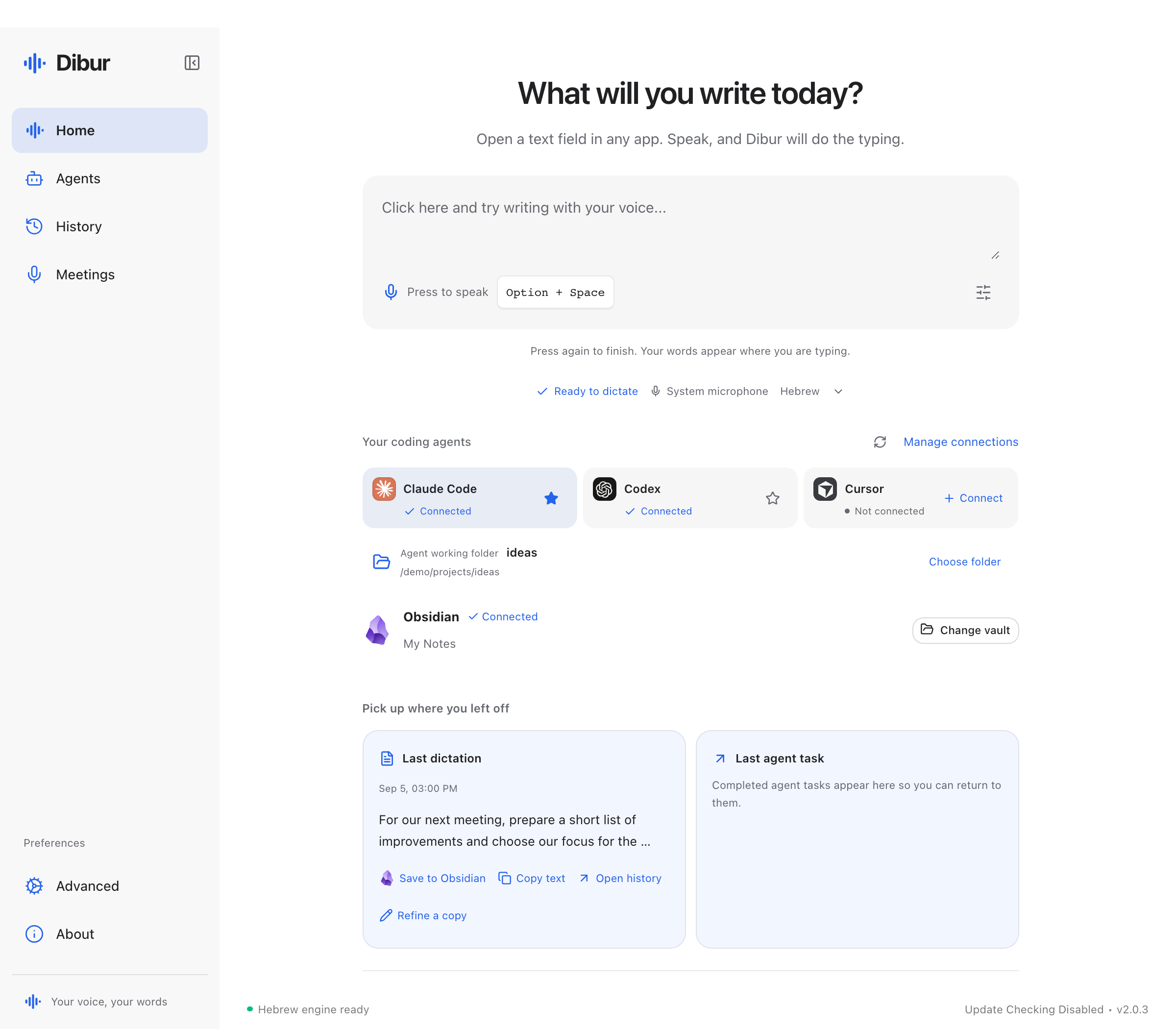
Open Dibur and choose Home in the sidebar. Find the Obsidian row with the purple icon, then click Connect vault. The same connection is available during first-run setup.
Choose your vault folder
In the folder picker, select the folder containing your notes and confirm. Choose the vault root, such as a folder named My Notes inside Documents, rather than a meeting or project subfolder.
Check the saved connection
Look for Connected and your vault name in the Obsidian row. Dibur now knows the destination. Connecting alone does not create notes or move your entire history into the vault.
Do not have a vault yet?
Install Obsidian from the official link below and open it. Use its vault picker to create a new vault, choose a name, and select a location you can find on your computer. Finish creating and opening the vault before returning to Dibur.
If another vault is already open, use the vault menu at the bottom left and select Manage Vaults... You can create a vault or open an existing folder there. The linked Obsidian guide shows the available options.
Dibur checks for a settings folder called .obsidian inside your vault. It is usually hidden; you do not need to open or edit it. Select the folder containing it. An ordinary folder that has not been opened as an Obsidian vault is not yet a valid connection destination.
Save your first note
Choose an item
Find Save to Obsidian, with the purple icon, on a dictation history item, agent result, or meeting. For meetings, wait for recording and transcription to finish.
Name the note
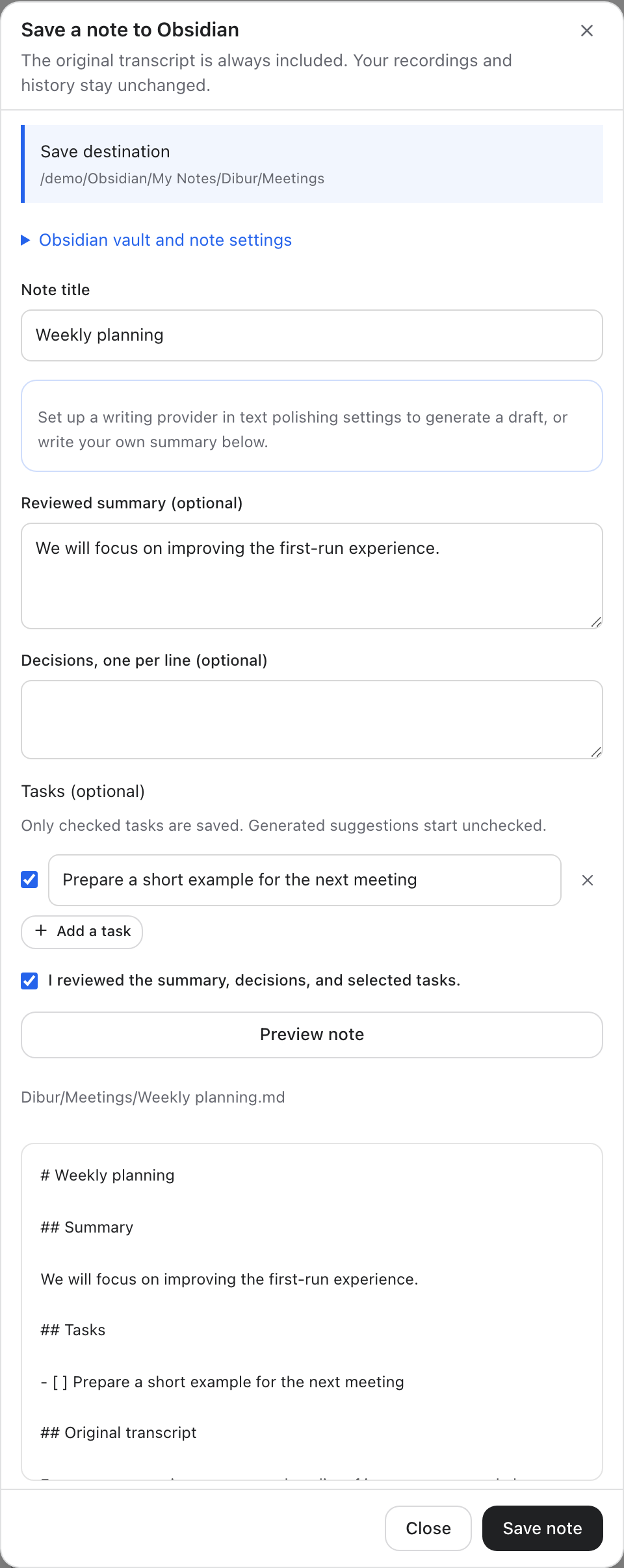
In the save dialog, check Note title and the destination. Keep the transcript as it is, or add a summary, decisions, and selected tasks. The original transcript stays included even when you add a shorter summary above it.
Review the preview
Click Preview note and read the result. If you added a summary, decisions, or tasks, review them and check the review confirmation. Changing the content requires a fresh preview before saving.
Save and open
Click Save note. After the success message, use Open in Obsidian and check that the note opens in the correct vault. The original recording and history item remain in Dibur.
Make the task list useful
Write your own summary, put each decision on a separate line, and select the tasks you want to keep. Phrase each task as something you can finish, such as “Send the draft for approval.” This helps when you return to the note without remembering the whole conversation.
Generated task suggestions begin unchecked. Select only the actions that were actually agreed, and correct missing details before saving. A suggestion from the model does not establish that someone accepted responsibility for doing it.
Tasks are part of a normal Obsidian note, where you can edit and check them off. This does not create two-way task synchronization with Dibur, calendar events, or automatic messages to meeting participants.
Choose folders, language, and daily notes
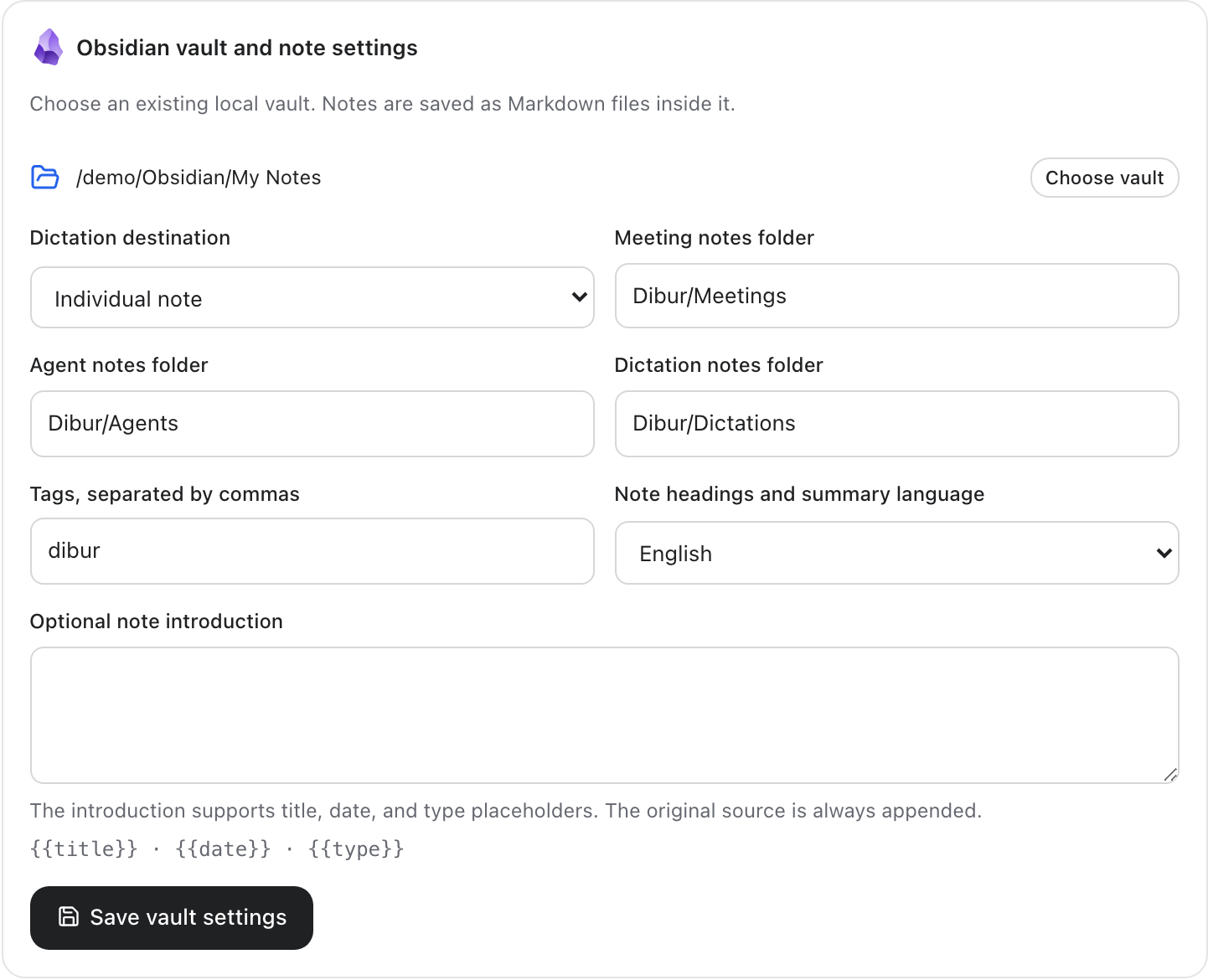
For the full settings, open Meetings in Dibur and find the Obsidian section. Vault settings are also available inside the save dialog. After editing them, click Save vault settings and wait for confirmation.
Choose separate folders for meeting, agent, and dictation notes. These locations are inside your selected vault. Start with the defaults, then change them if you need a different organization, such as a work-meeting folder separate from short ideas.
Choose Hebrew or English for note headings and the summary. This setting does not translate the original transcript. You can add comma-separated tags and a short note introduction to organize exports without changing the recording.
To collect dictations by day, choose Daily note under Dictation destination and set your Daily notes folder. Dibur appends to YYYY-MM-DD.md using the recording date and retains existing content. Custom Obsidian date formats are not detected automatically, so check the preview destination if your own daily notes use another format.
An AI draft is optional
You can save a note without an AI provider or an automatically generated summary. If you have configured a writing provider in Dibur’s text-polishing settings, the save dialog can offer Generate a draft with that provider.
The dialog identifies the provider and model before you click. A remote provider receives the full meeting transcript; a local provider receives it at the configured local endpoint. Clicking starts that request and provider usage limits may apply. You must still review the draft and tasks, then explicitly save the note.
What is saved and what you control
The connection writes Markdown files inside your vault. These are text files you can open and edit in Obsidian. No dedicated plugin or Obsidian API key is needed. If you already sync your vault through another service, these files also follow that service’s settings.
Saving the same source again should not create a duplicate or overwrite edits you made in Obsidian. When Dibur reports an existing note, open that note to keep working. This connection exports selected items; it does not automatically back up your vault or track every edit.
How to know it worked
- Home shows Connected and the vault name you selected.
- Open in Obsidian opens the note in the correct vault.
- The note includes the original transcript and only the tasks you selected.
Stuck? Start here
No Obsidian connection button?
Your installation may predate this feature. Check the availability notice at the top of this guide. Reinstalling the same download does not add functionality that was not included in that installer.
The folder picker rejects my folder?
Open it as a vault in Obsidian first. Then select its root folder in Dibur, which contains .obsidian. Do not choose the hidden settings folder itself or a notes subfolder.
Save note is disabled?
Check that a vault is connected, the source has finished writing, and you have viewed a current preview. Review any added content and check the confirmation. Unchecked tasks are not included.
The daily note is in another folder or has another name?
Check Daily notes folder in Dibur. The filename uses the recording date as YYYY-MM-DD.md. Custom formats configured by Obsidian plugins are not detected automatically.
The note already exists, or Open in Obsidian fails?
Open the vault and folder shown as the destination and find the existing note. A successful save followed by an app-opening error does not mean the file was lost. Keep editing the existing note rather than deleting it to force another export.
Sources and updates
Steps were checked against Dibur’s source and official documentation. Screenshots show the application with demonstration data and no personal information.