
What you need before you start
- Dibur installed, activated and ready to transcribe.
- A selected microphone that can hear the voices you want to capture.
- Enough time for a short test before the meeting begins.
First check where the voices will come from
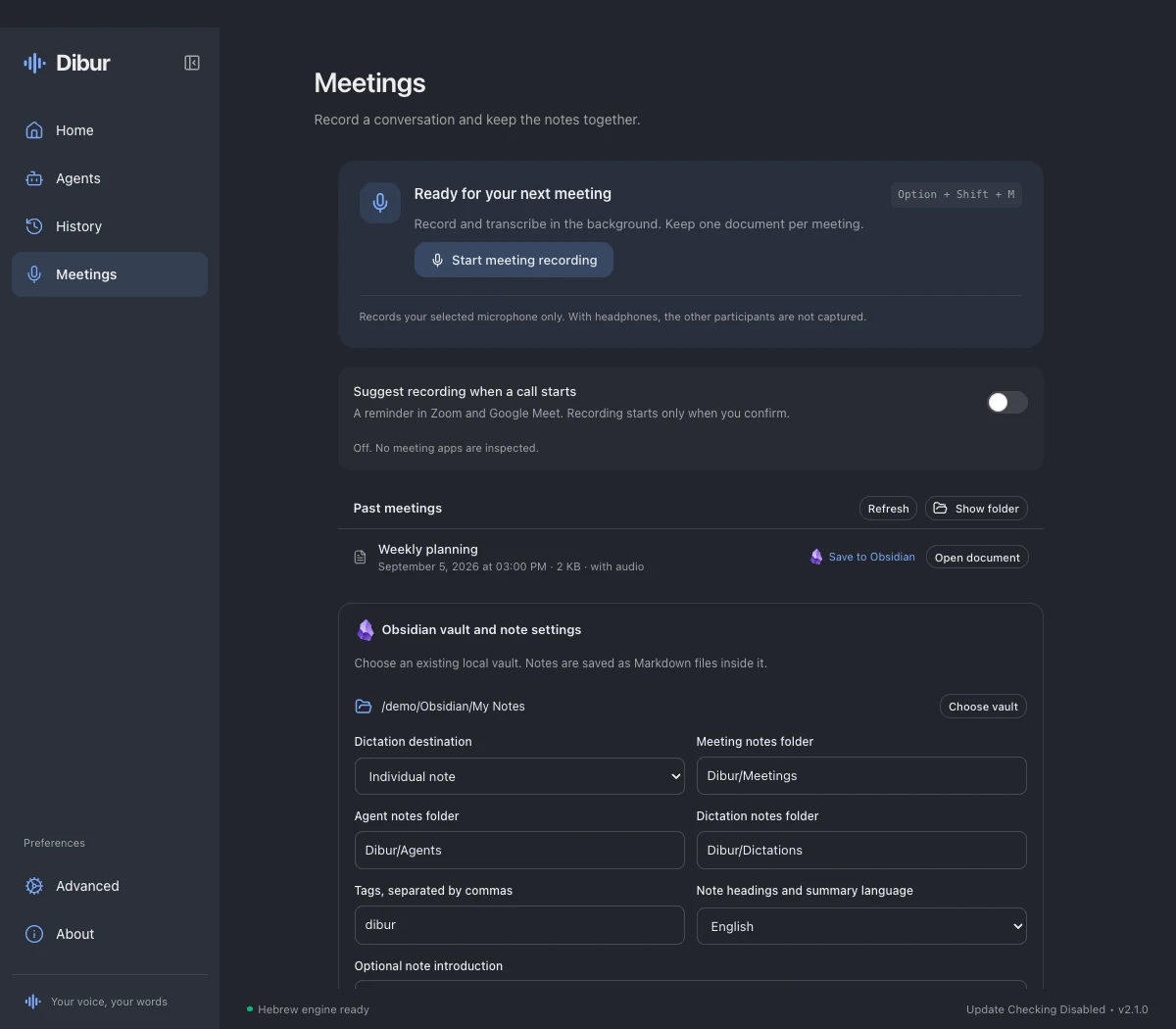
Open Meetings in the Dibur sidebar. Before starting, check the microphone selected in your dictation preferences. Meeting recording uses that microphone, including your chosen input channel. If you changed headsets or connected a USB microphone, check the selection again rather than assuming the meeting app and Dibur chose the same device.
For people in the same room, place the microphone where it can hear them clearly and make a short test. For Zoom or Google Meet with headphones, Dibur captures your microphone, so the voices playing inside the headphones will be absent. It does not capture a separate stream of computer sound or receive the meeting audio from Zoom.
Start recording from Meetings
Check the destination before you start
Find Meeting notes folder. The displayed path is the destination, usually Documents/Dibur. Use Choose folder to select another location you can find later.
Choose whether to keep the audio
Keep the audio recording controls whether a WAV stays beside the finished text. Leave it enabled to listen back later. If disabled, do not rely on finding the audio.
Choose Start meeting recording
The status changes to Recording meeting and an elapsed-time counter appears. Speak a short test sentence and check that the paragraph count begins to grow after processing. Text arrives in segments, so it does not need to appear after every word.
During the meeting, let the recording run
You can return to another app while Dibur records. The counter shows elapsed time; paragraphs written counts saved text. Segments waiting means audio is still processing.
Keep the computer awake and microphone connected. Disconnecting or muting the input prevents capture. Check a short saved test before relying on the setup for an important conversation.
Stop, wait for saving, and open the document
Choose Stop and save
Return to Meetings and press Stop and save. Wait while Finishing and saving is shown. This gives pending audio segments time to finish. Closing the window or leaving a call is not the same action as pressing this button.
Find the meeting in Past meetings
When recording finishes, look under Past meetings. Choose Refresh if needed. Each session has its own document and timestamp; check the date to avoid opening an older meeting.
Open the text or its folder
Choose Open document to use your computer’s usual app for .md files, or Show folder to find it yourself. A Markdown file is an ordinary text document with simple formatting marks. If no app is associated with it, open it in a text editor. Read and correct the transcript before sharing it.
Optional: let Dibur suggest recording a call
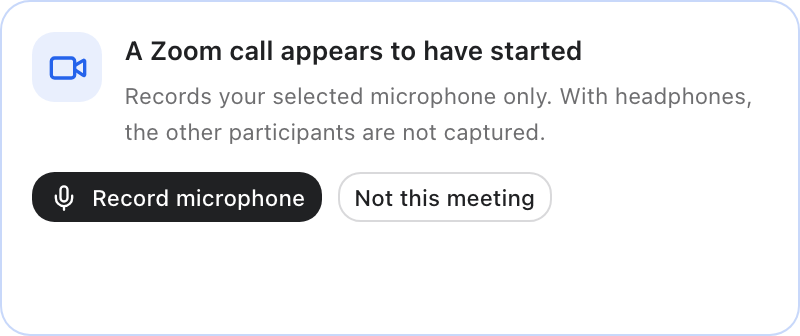
In versions with Meeting reminders, enable Suggest recording when a call starts. This is available on macOS and uses Accessibility permission to recognize call controls. Supported cases are the Zoom app and Google Meet in Chrome, Edge and Safari, with English or Hebrew controls. It does not search your calendar or automatically start a recording.
A small suggestion offers Record microphone when a supported call appears to begin. Choose it to start, or Not this meeting to dismiss that suggestion. If the call appears to end, Dibur offers Stop and save or Keep recording. Recording continues until you choose to stop.
Some minimized windows, hidden tabs or inaccessible controls cannot be recognized reliably. If no suggestion appears, use the manual recording button. The presence of a reminder does not add other participants’ headphone audio to your microphone recording.
Optional: prepare a summary and save to Obsidian
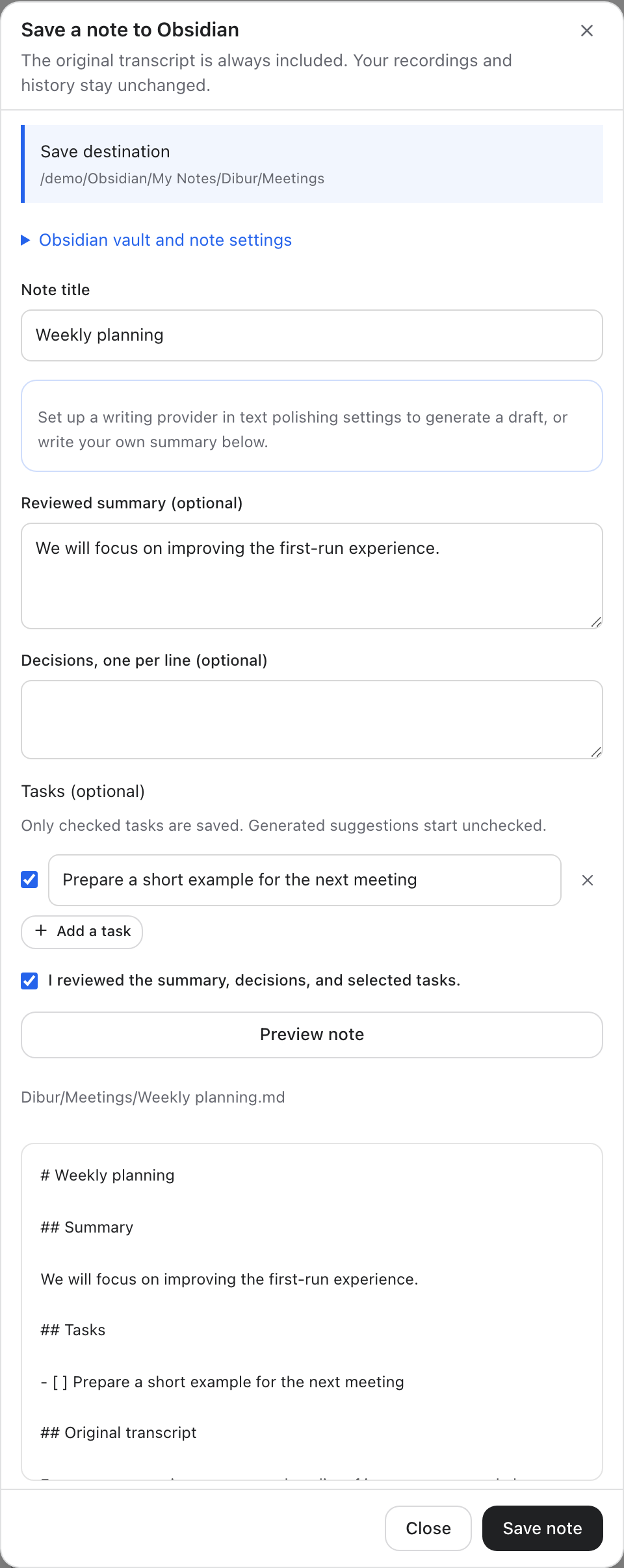
If your version shows Save to Obsidian beside a finished meeting, open it after recording stops. You can choose an existing Obsidian vault and review the title, optional summary, decisions and tasks. The original transcript remains part of the note; editing a summary does not replace what was recorded.
Automatic draft generation is optional. Read the provider name and destination displayed beside Generate a draft before using it. Clicking that button sends the complete transcript to the configured writing provider. A remote provider receives it remotely; a local provider processes it locally. Opening the dialog or connecting a vault does not generate a summary.
Check the generated wording and select only the task suggestions you actually want to keep. Suggested tasks begin unchecked. Confirm that you reviewed the additions, choose Preview note, and inspect the destination and final document before Save note. If you change the draft, update the preview again. An already exported source offers its existing note rather than overwriting your edits.
How to know it worked
- After Stop and save finishes, your meeting appears in Past meetings.
- Open document shows the test words your selected microphone captured.
- The file is in the folder displayed by Dibur, with adjacent audio if retention was enabled.
Stuck? Start here
Only my voice appears in the transcript.
If other attendees were playing through headphones, that matches microphone-only capture. Dibur does not obtain a remote audio stream from the meeting app. Use a recording method that actually captures all required sources when you need every attendee.
The meeting reminder never appeared.
Check that reminders are enabled and that you are using a supported macOS app, browser and control language. Accessibility must be allowed. A hidden or minimized call may remain undetected; start manually from Meetings.
Stop and save is taking time.
Pending segments may still be transcribing. Keep the app open until it finishes or reports a specific failure. Check the saved document before assuming every segment is complete, and retain the audio when you need to review gaps.
I cannot find the summary button.
It belongs to the meeting Save to Obsidian dialog in the newer interface. Versions before 2.1 support manual meeting documents but do not contain that flow. If the dialog is available but no provider is configured, write a summary manually or configure the writing provider first.
Sources and updates
Steps were checked against Dibur’s source and official documentation. Screenshots show the application with demonstration data and no personal information.